 Scramble
Guides Using ScrambleBoard
Track who's paid (without collecting money)
Chasing entry fees is half the work of running an outing. ScrambleBoard can record who has paid. This record does not move money. It stops the guessing at the check-in table.
Mark players paid
On Players & check-in, each player has one line. Press Mark paid on it. A paid mark can carry a note, such as "Venmo 6/12" or "cash to Mike". Each team shows a count such as "paid 3/4", and one tap marks a whole team paid. To undo a mark, open the player's ⋯ menu and press Mark unpaid.
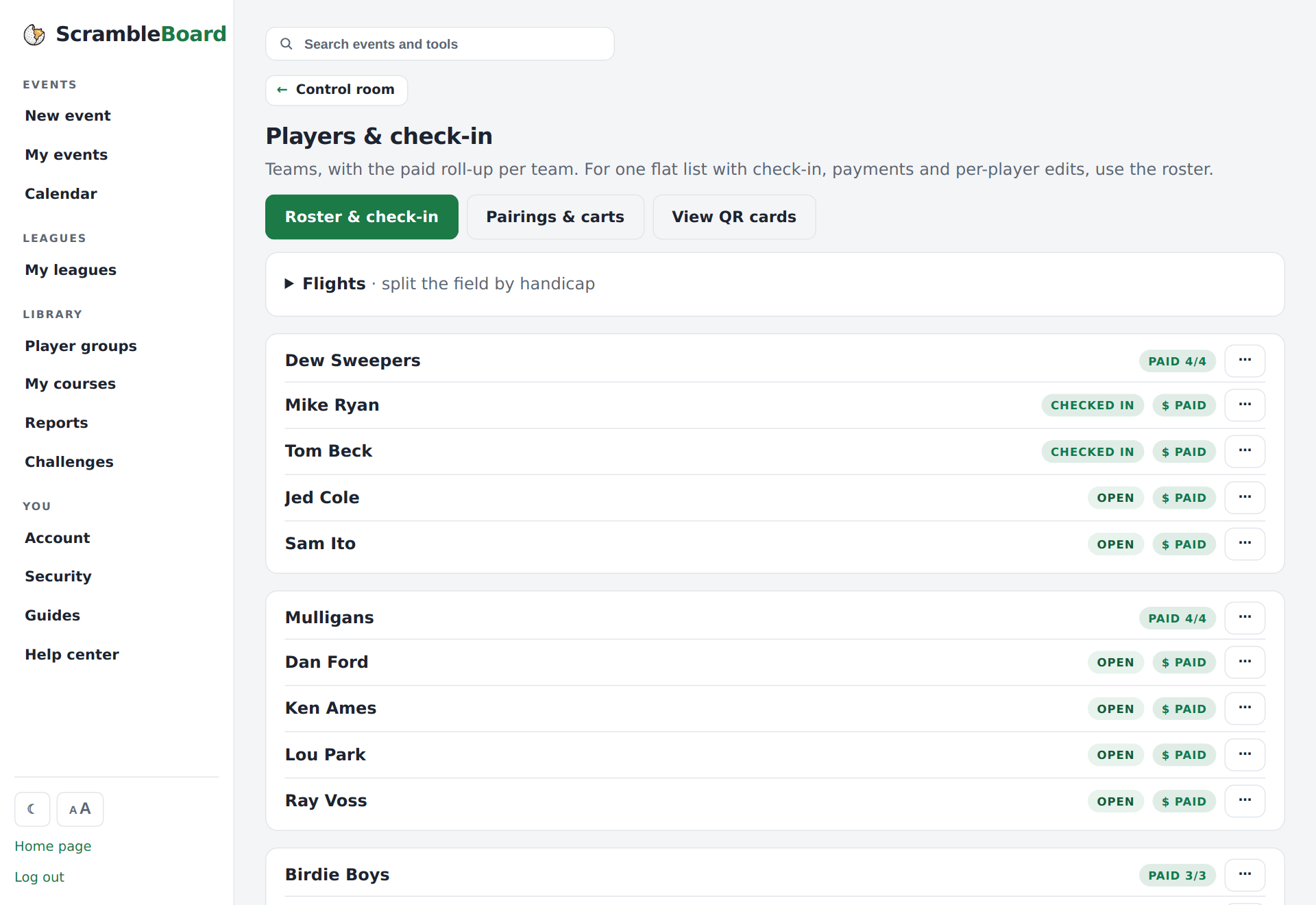
See who still owes
The event's Overview shows how many players are unpaid, so you see the picture at a glance on the morning of the event. The check-in sheet can print a Paid column - checkmarks, counts for teams, and your notes - for the person at the table.
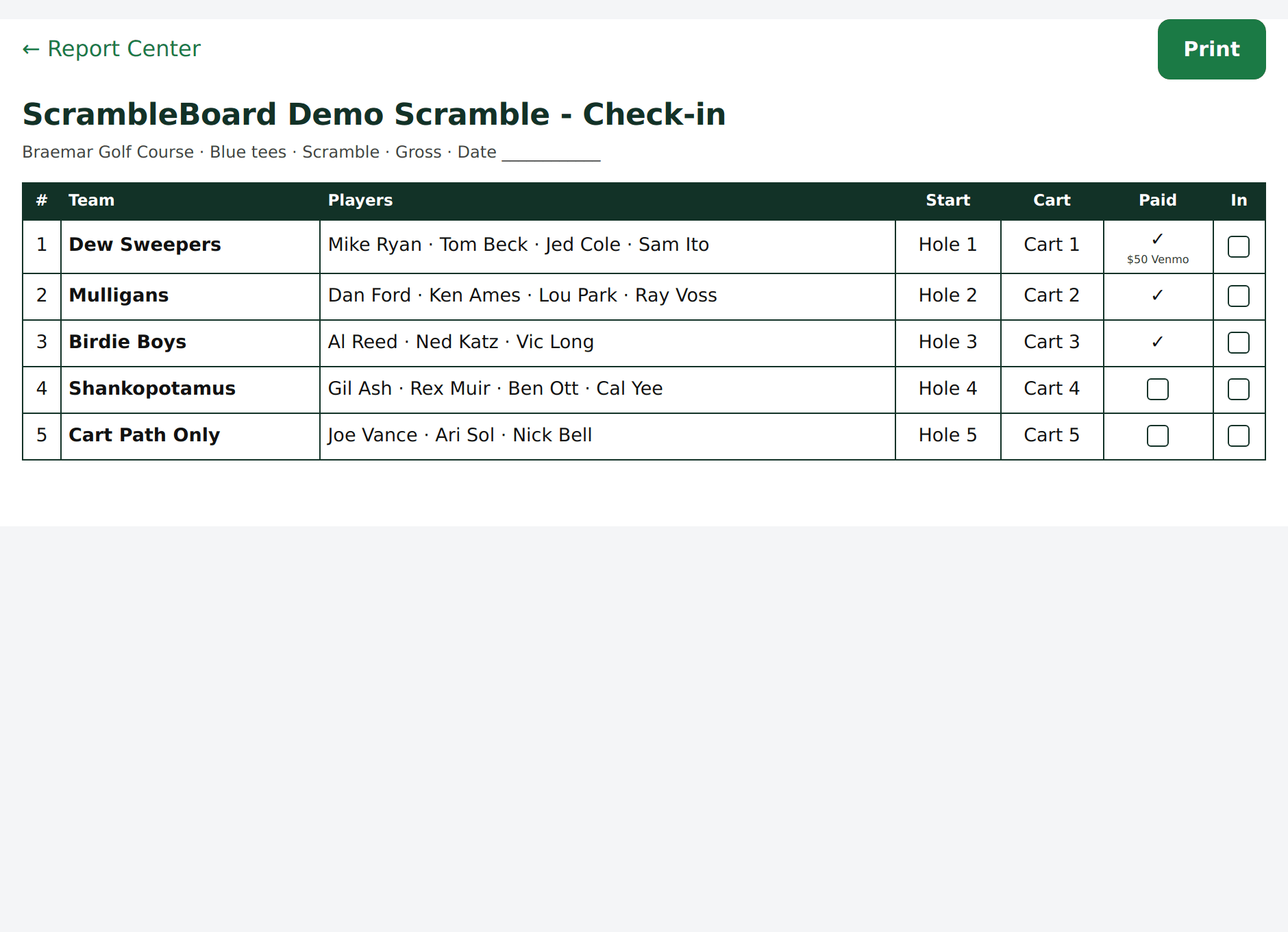
Full guide: Print scorecards, cart signs, and check-in sheets
Import paid status with your roster
Registration exports usually show who paid. Upload the file, and paid, amount, or order status columns are found. Players arrive on the roster already marked paid or unpaid. Eventbrite, GolfStatus, and Square exports work.
Full guide: Import your roster from a spreadsheet or registration export
What this does and does not do
Paid marks are a record only. They do not stop anyone from joining, claiming a name, or scoring. They are also separate from online sign-up. If you sell entries on your event's registration page, paid orders arrive on the roster already marked paid. Use this page for everyone who paid some other way.
Frequently asked questions
Can players pay through ScrambleBoard?
Yes, if you want. Online registration can sell entries by card, and the money goes to your own Stripe account. ScrambleBoard does not hold it. Prefer cash and Venmo? The paid marks keep the record either way.
Run your event without paper Players scan a code, claim their name, and score on their phones. The leaderboard updates on every phone and the clubhouse TV. No app to install.
Create a free tournamentRelated guides
If your sign-ups are in a spreadsheet or a registration site, do not type them again. On the event's roster page, open **Import a list** and then the **Upload a file** tab. ScrambleBoard finds the columns that matter.
Paper still matters on event day. The Report Center prints six documents from your roster, so you do not copy names into Word at 6 a.m. Each scorecard carries the event's join QR, so the card in the cart is also the way in.
On a new event, the first stop on the Run tab, **Who's playing?**, takes a pasted list. For everything else - one player at a time, a spreadsheet, a photo of the sign-up sheet, or a saved group - use the event's roster page. Use whichever way matches what you have in your hand.