 Scramble
Guides Setup
Sponsor logos: where they show, and how to collect them
Selling the sponsorship is the easy part. Getting a usable logo out of five businesses the week of the event is the part that eats an evening. ScrambleBoard gives each business its own link, shows you the mark on every surface it will land on, and puts nothing on a screen until you say so.
Where a sponsor can appear
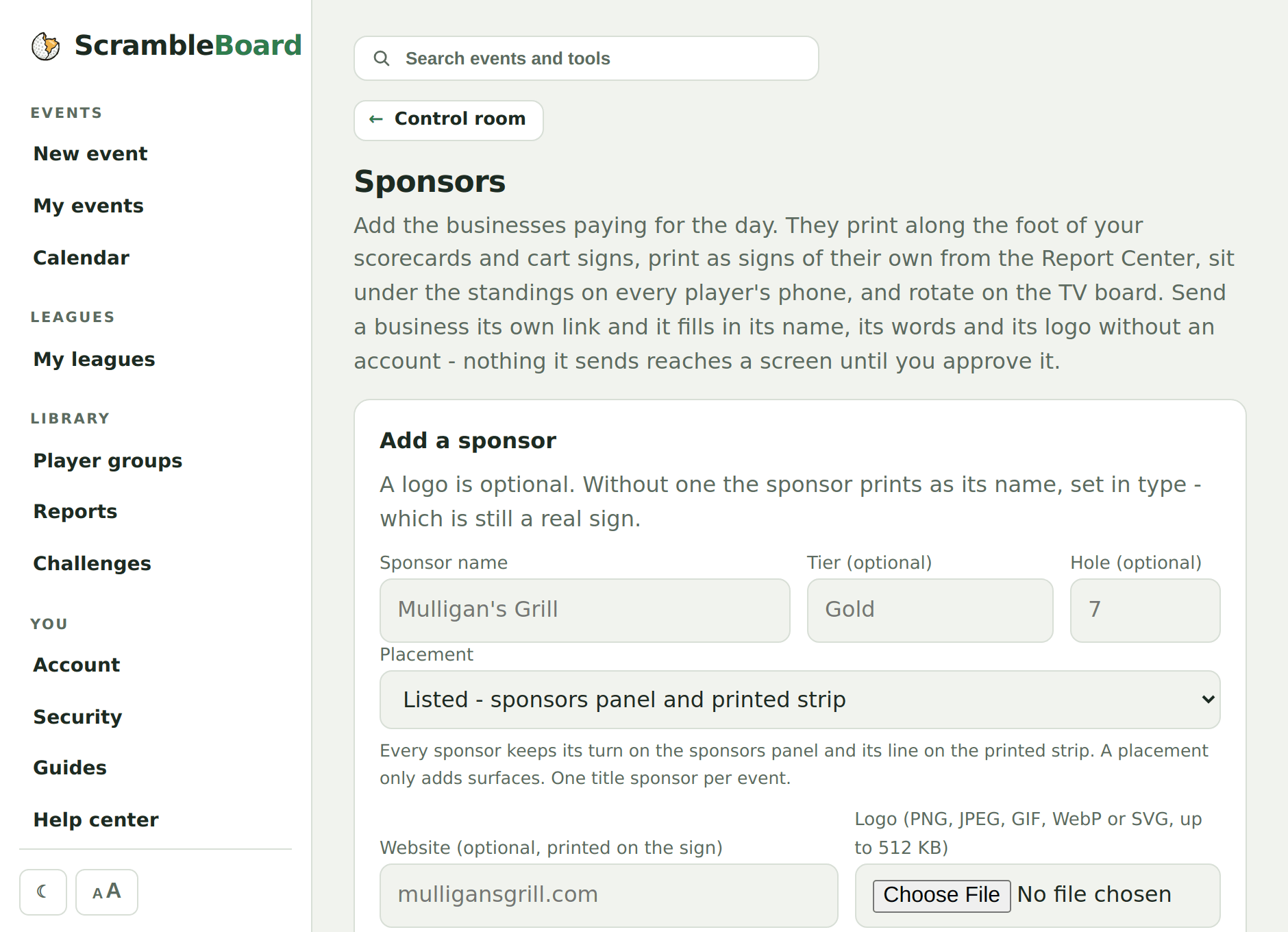
Every sponsor takes a turn on the sponsors panel of the TV board and prints along the foot of your scorecards and cart signs. That happens with no setup at all. A placement adds surfaces on top of it.
Whatever the placement, a smaller mark also rotates through the corner of each panel, so a hole sponsor still gets time on the big screen without buying the panel out. And every live sponsor shows in a strip under the standings on the players' own phones - the one place the logo can be tapped, because their website opens from it.
Set the placement on the Sponsors page, either when you add the business or later. These are the four:
- Title sponsor - the "presented by" line at the foot of every TV panel, all day, and the winner callout when you finalize. One per event.
- Board strip - a band directly under the standings on the big screen.
- Hole sponsor - the tee sign, and their logo beside that hole's row on the challenge board when the hole is a closest-to-the-pin or long-drive contest.
- Listed - the sponsors panel and the printed strip, which is what every sponsor gets anyway.
Sending a business its own link
On the Sponsors page each row has Get their artwork link. Press it and you get an address to send however you already talk to that business - email, text, or in the message where you thanked them.
The link needs no account and reaches nothing but that one sponsor's details.
Tell them to send the version drawn for white paper. It sits on a white tile on the TV and it prints on white cards. A screenshot of a logo usually will not work. What the business fills in:
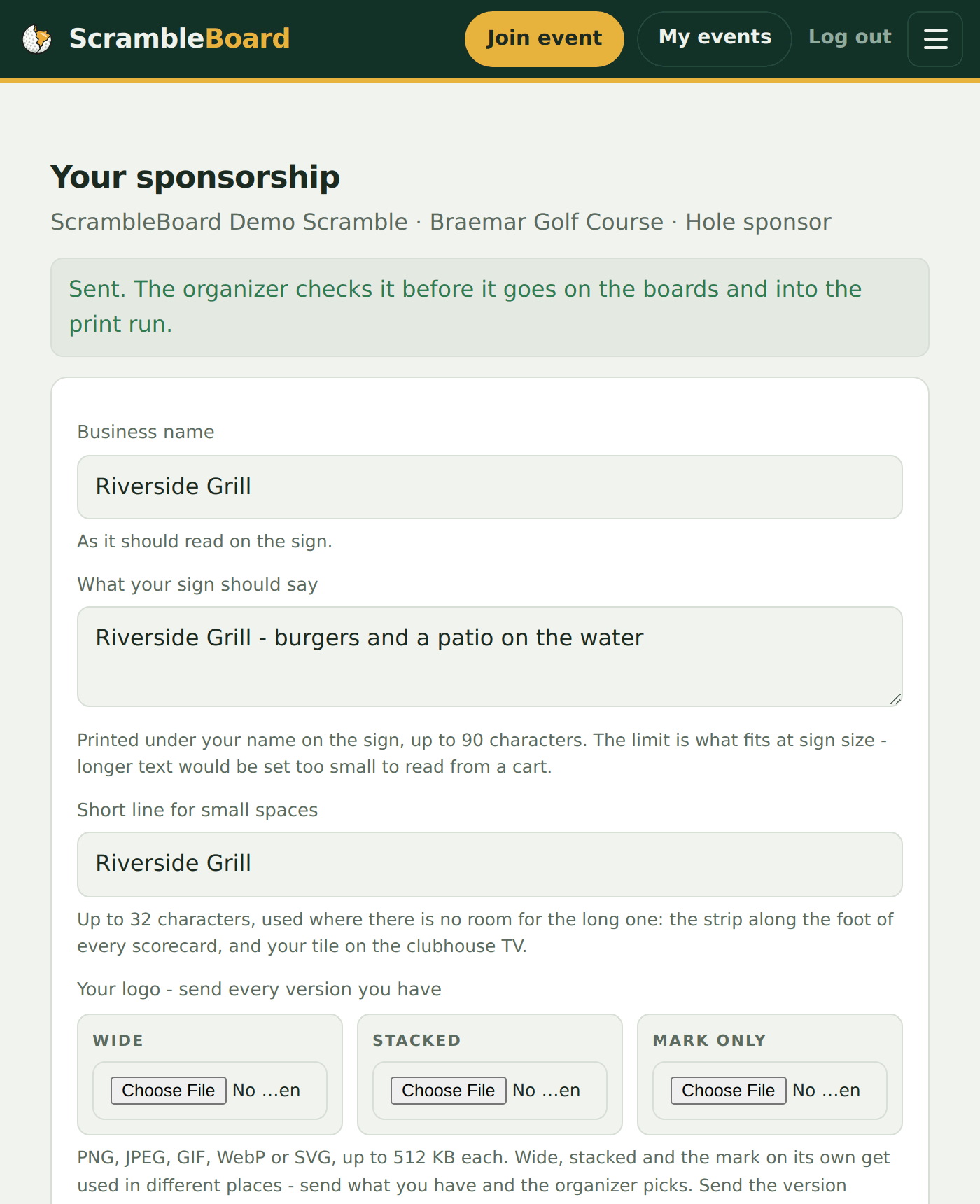
- Their business name, as it should read on the sign.
- What their sign should say - up to 90 characters. The limit is what fits under the name at sign size; longer copy would be set too small to read from a cart.
- A short line - up to 32 characters, for the places with no room for the long one: the strip along the foot of a scorecard, and their tile on the TV.
- Their logo, in every version they have. Wide, stacked, and the mark on its own all get used in different places. They send what they have and you pick.
- Their website, which is what opens when a player taps their logo, and a contact for you (never printed, never on a screen).
Previewing and approving
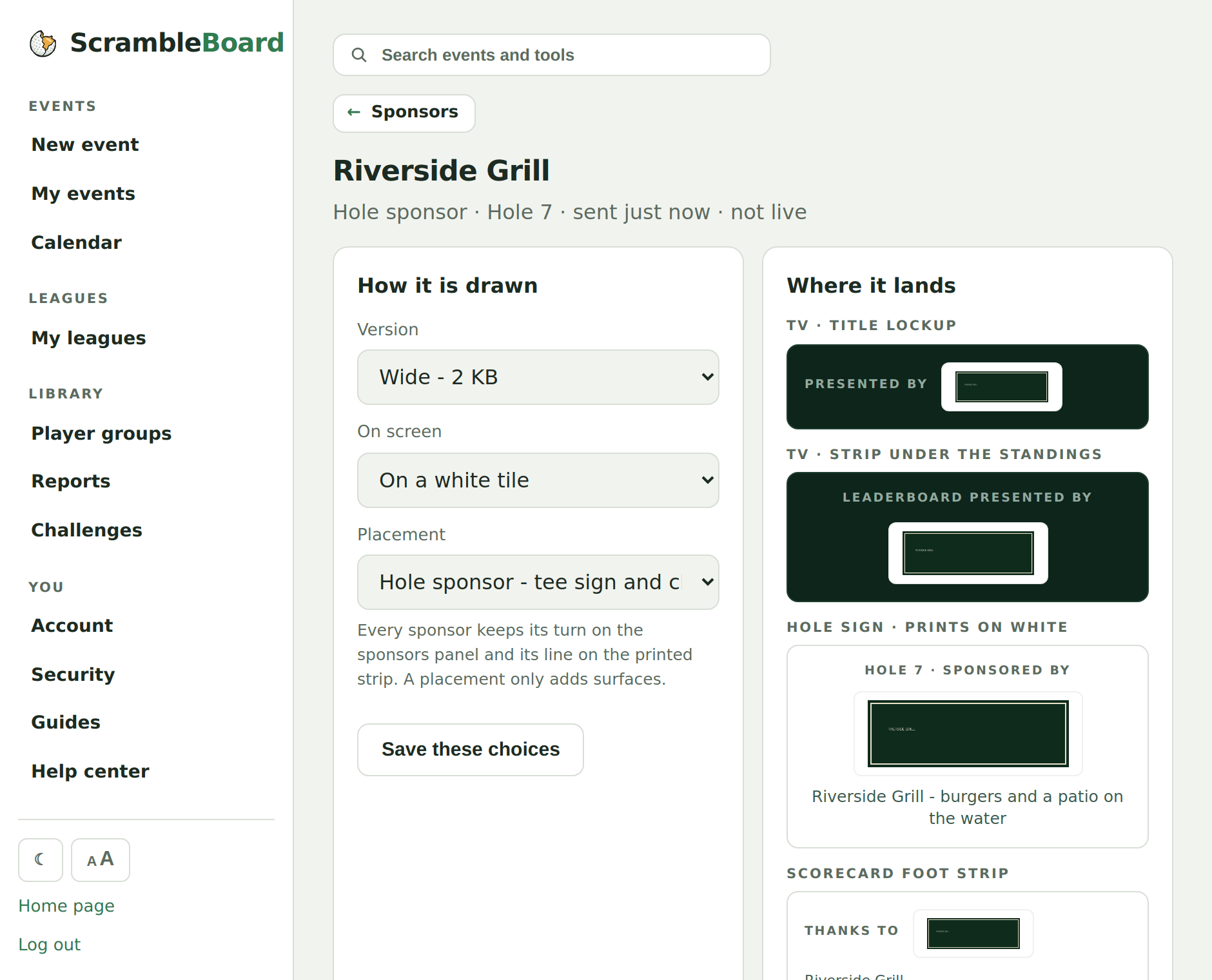
Nothing a business sends reaches a public screen on its own. Press Preview & approve on their row and you get the approval room: their mark drawn on the TV's title line, on the strip under the standings, on the printed hole sign, and on the scorecard foot strip - all at once.
The page warns you about the choices worth a second look, such as a dark logo with no tile, which all but vanishes on the dark green board. It is advice, not a block - you can see the preview and decide.
When it looks right, press Approve and publish. The logo is on every screen within 15 seconds and in the next print run. Take it down is one press and clears just as fast; cards already printed keep the version they were printed with. Three choices sit beside the preview:
- Version - which of the files they sent to use, or "no logo" to set their name as type, which is still a real sign.
- On screen - on a white tile (the safe default), a white knockout, or straight on the board with no tile. Paper always uses the full-colour file: a knockout that reads beautifully across a room is invisible on a scorecard.
- Placement - what they bought.
Chasing the ones who have not sent anything
The Sponsors page leads each row with where it stands: approved, waiting on you, link sent with nothing back, or no artwork yet. That list is the whole point - it is the difference between remembering which three businesses still owe you a logo and texting all five again.
Frequently asked questions
Do I have to use the link? I already have their logo.
No. Add the sponsor yourself, upload the logo on the same form, and it prints and shows immediately. The approval gate applies only to sponsors who came in through a link, because that upload arrived from someone the app has never met.
A sponsor sent a new logo after I approved them. What happens?
Their row goes back to "waiting on you" and comes off the screens until you approve the new version - you approved the one you looked at, not whatever arrives afterwards.
Can two businesses be the title sponsor?
No. One per event, and the app refuses the second. Move the first one to another placement and the slot frees up.
What file types and what size?
PNG, JPEG, GIF, WebP or SVG, up to 512 KB each. That is a wordmark on a sign, not a photograph.
Does a sponsor see my event's scores?
No. Their link opens their own details and nothing else. If you send them the event link as well, they see the same public leaderboard as everyone else.
Run your event without paper Players scan a code, claim their name, and score on their phones. The leaderboard updates on every phone and the clubhouse TV. No app to install.
Create a free tournamentRelated guides
Every event has a TV board: a fullscreen leaderboard made to be read from across a room. It needs no login and no app - it is a web page, so anything with a browser and an HDMI port can show it.
Every print comes from the Report Center: scorecards, cart signs, an alphabetized check-in sheet, sponsor signs, and the final results. This page is the printer-side reference; the how-to is in the printing guide.
This charity golf tournament rules template gives you a complete, ready-to-post rules sheet for a four-person scramble - the format almost every charity outing uses. Copy the text below, swap in your event name, and you are done. Every rule here has been battle-tested at real outings, so you will not get flagged down on hole 7 by a team asking what counts.