 Scramble
Guides Setup
Put the leaderboard on the clubhouse TV
Every event has a TV board: a fullscreen leaderboard made to be read from across a room. It needs no login and no app - it is a web page, so anything with a browser and an HDMI port can show it.
The TV URL
The board lives at scrambleboard.com/t/YOURCODE/tv, where YOURCODE is your event's join code. There is a shorter address that lands in the same place: scrambleboard.com/tv/YOURCODE. Use the short one when you are typing on a TV remote - it is a dozen fewer keypresses on an on-screen keyboard, and every one of them is a chance to land on a "not found".
Two other ways to get there: open your event's leaderboard on any device and press the TV board button at the bottom, or use the TV board link in your control room. The page carries the join QR in its footer, so the screen doubles as a way in for late players.
Ways to put it on a screen
Set the screen and the device to never sleep for the day. That setting lives on the TV and the device, not in ScrambleBoard - it is the number one cause of a board that "stopped".
- A smart TV with a browser - open the browser app, type the URL, then use the TV's fullscreen option. The simplest setup when the clubhouse TV has one.
- A laptop on HDMI - plug in, open the URL in any browser, press F11 (Windows) or Ctrl-Cmd-F (Mac) for fullscreen. The most reliable option, and the easiest to fix mid-event.
- A Chromecast, Fire Stick, or Apple TV - open the stick's browser app (Silk on a Fire Stick), type the URL, go fullscreen. Casting a phone's tab also works, but keeps the phone busy all day - a stick's own browser does not.
The controls on the screen
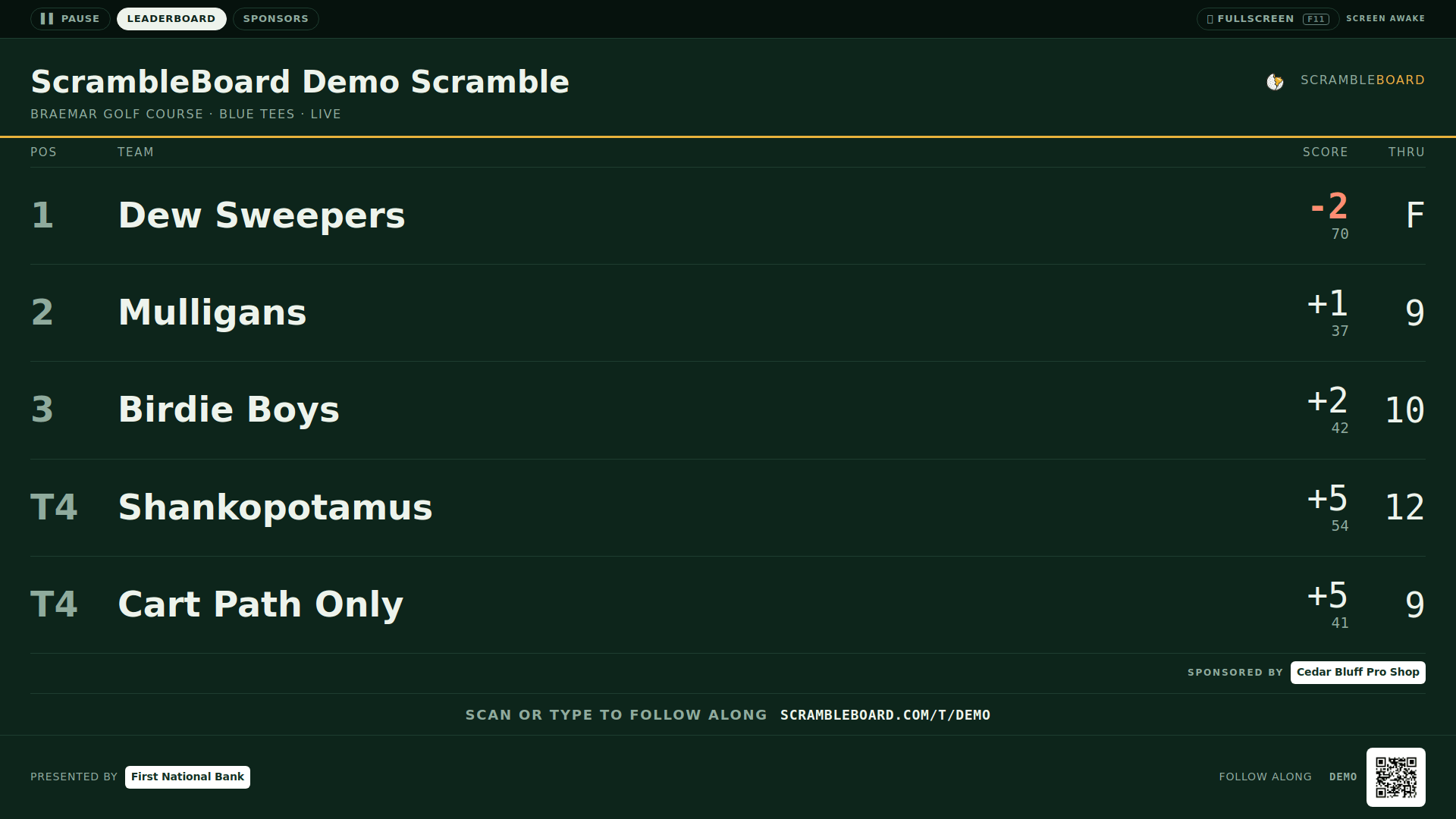
Move the mouse, press a key, or touch the screen and a bar appears across the top of the board. It hides itself again after a few seconds so it is never in the way of the standings.
Every button on it is an ordinary link, so a TV remote can follow them - you do not need a mouse or a keyboard at the screen. Whatever you press ends up in the address bar, which means you can copy that address into a second TV and it will show the same thing.
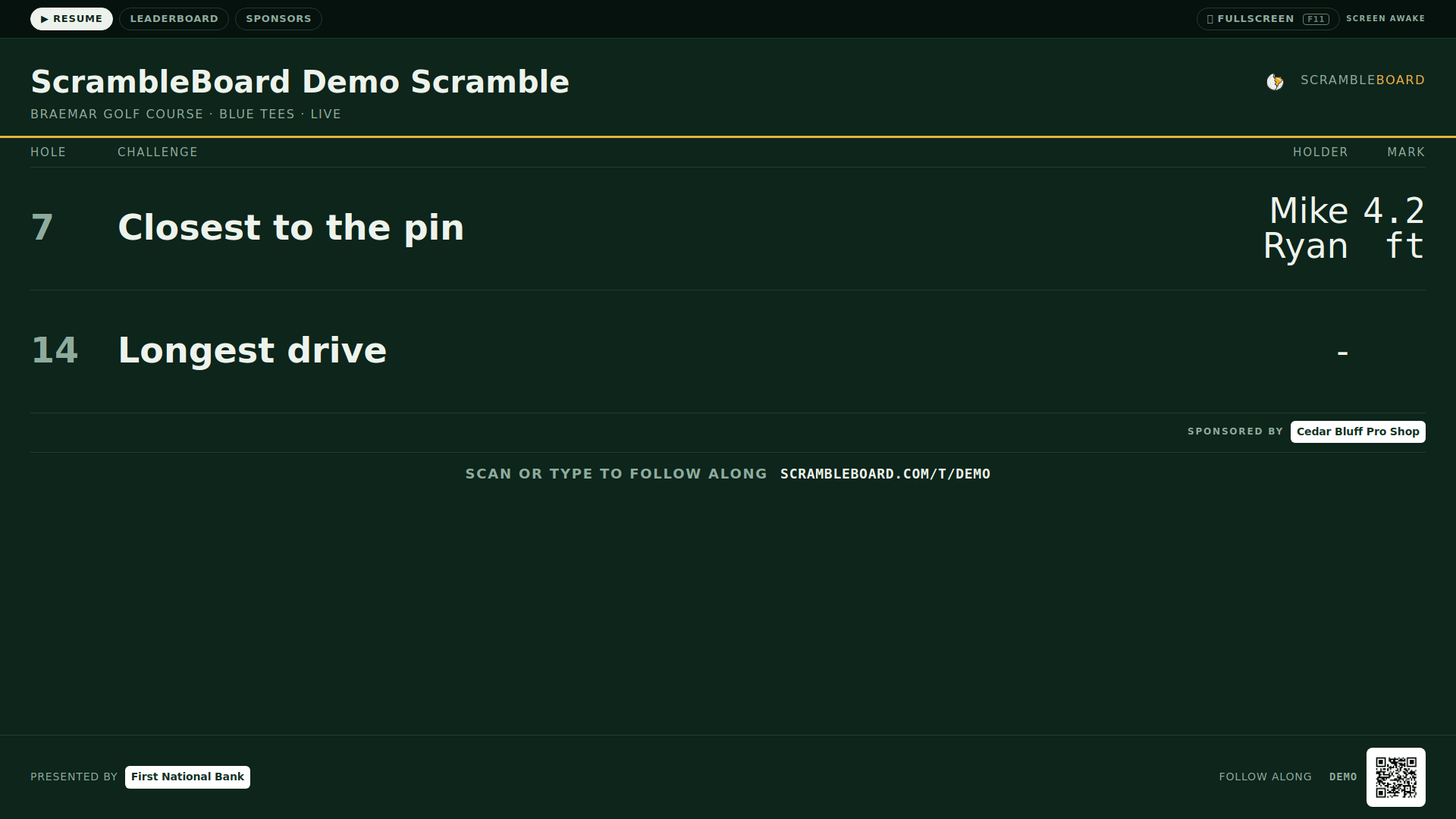
- Pause holds the screen exactly where it is. Scores keep arriving behind it - pausing stops the rotation, not the leaderboard. Press Resume to let it move again.
- The panel buttons jump straight to a leaderboard, the skins race, the challenge holes, your sponsors, or a league's season table. Only the panels with something to show appear.
- The page arrows step through a big field by hand.
- Fullscreen fills the screen without hunting for the browser's own control.
Announcements on the big screen
Anything you post from Announce in the control room appears as a band across the top of the board within 15 seconds, on top of whatever panel is up. It shows on every phone at the same time. Take it down the same way and it clears everywhere.
The board fills the screen
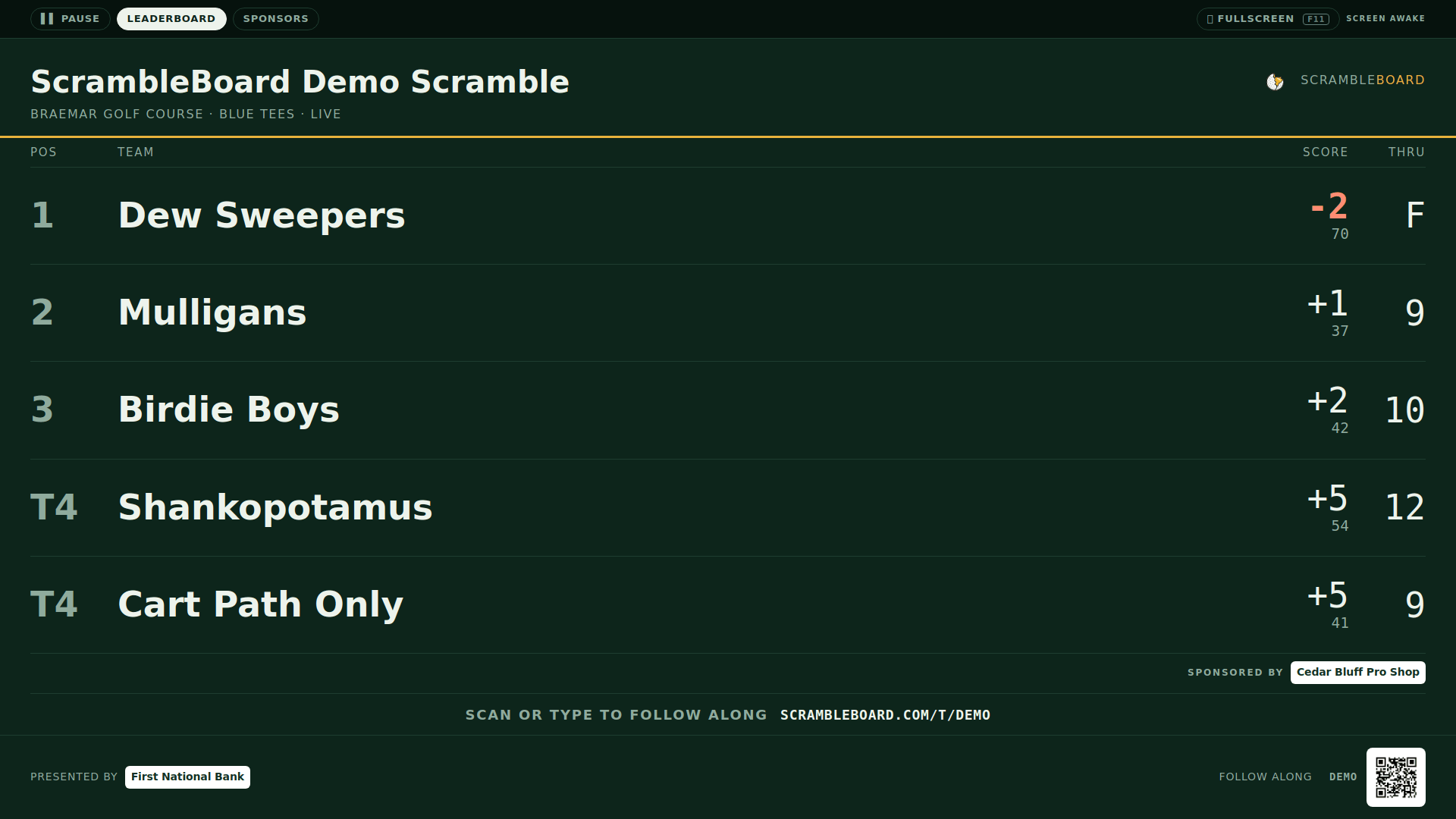
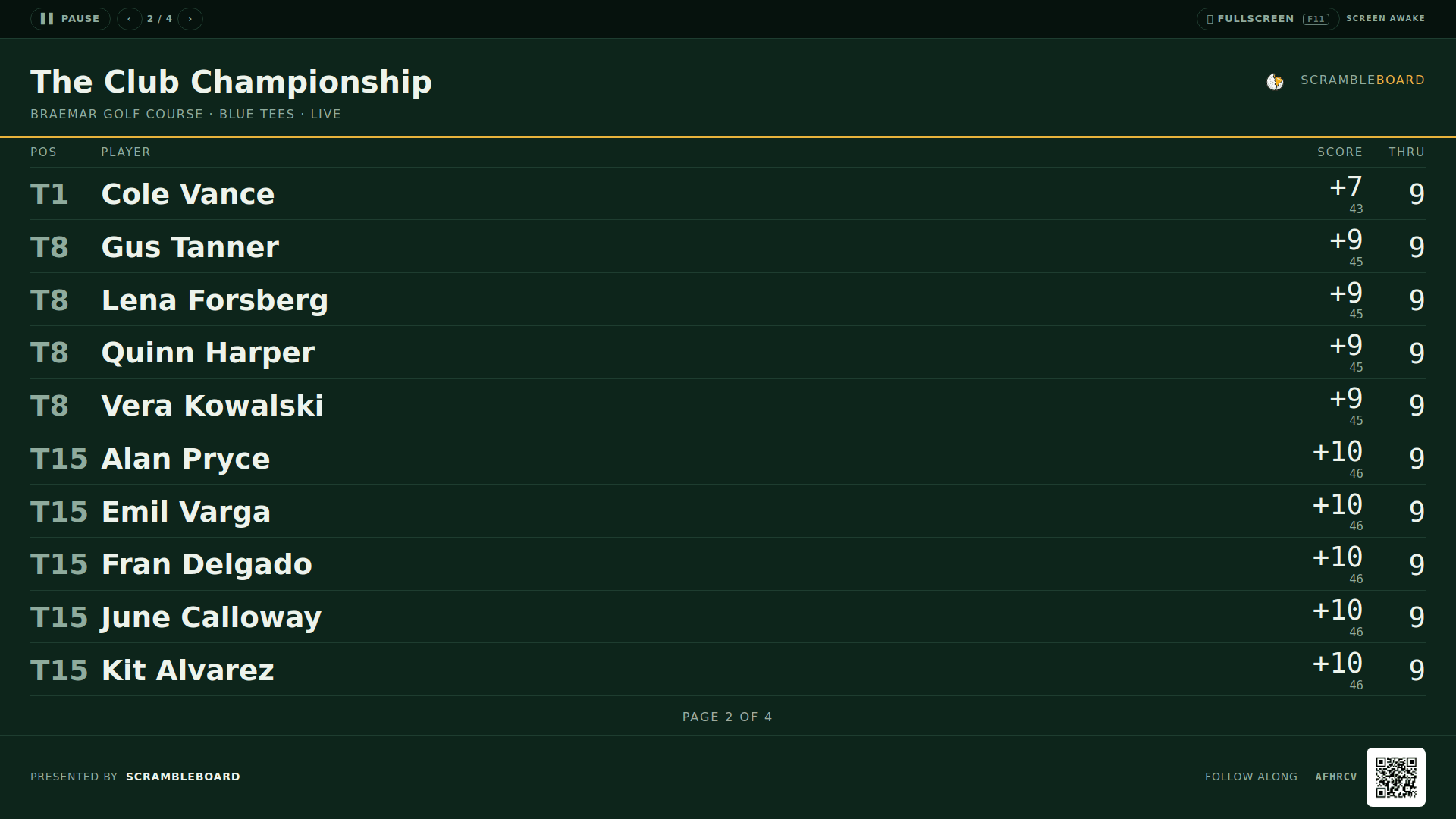
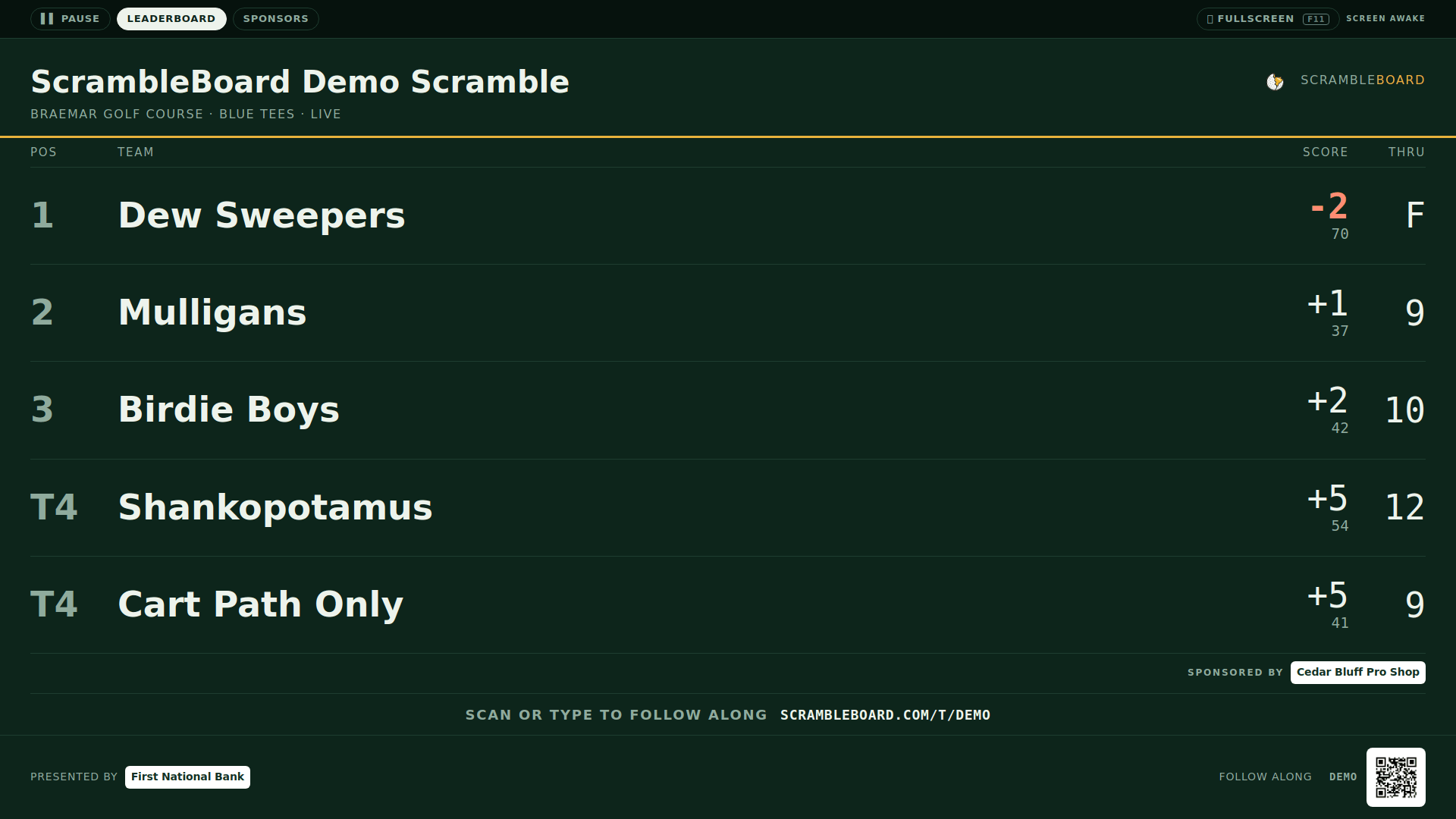
The rows share whatever height the screen has, so a six-team scramble is not six lines across the top of a 65-inch TV with the rest dark - the type grows to fill it. A big field pages instead, and the pages are even: a field of 26 at a page size of 12 shows 10, 10 and 8 rather than 12, 12 and a page holding four. Nothing scrolls, ever.
"Most rows on one TV screen" is a ceiling, not a target: the most rows you will accept at once. Set it to 8 for the biggest type, 20 to fit more people on a page.
The three display modes
The Event setup page (step 2, "TV board shows") picks what the screen does:
After you finalize the event, a rotating board switches to a Final results panel: the winner, the standings, and a QR that opens the full results page - with your sponsor panel still taking its turn.
- Leaderboard only - the standings, nothing else. The default.
- Rotate - the board takes turns with every panel that has content, twenty seconds each: challenge holes, the skins race, a league's season standings, and your sponsors on their own panel. Empty panels are skipped, so a no-skins event never shows an empty skins screen.
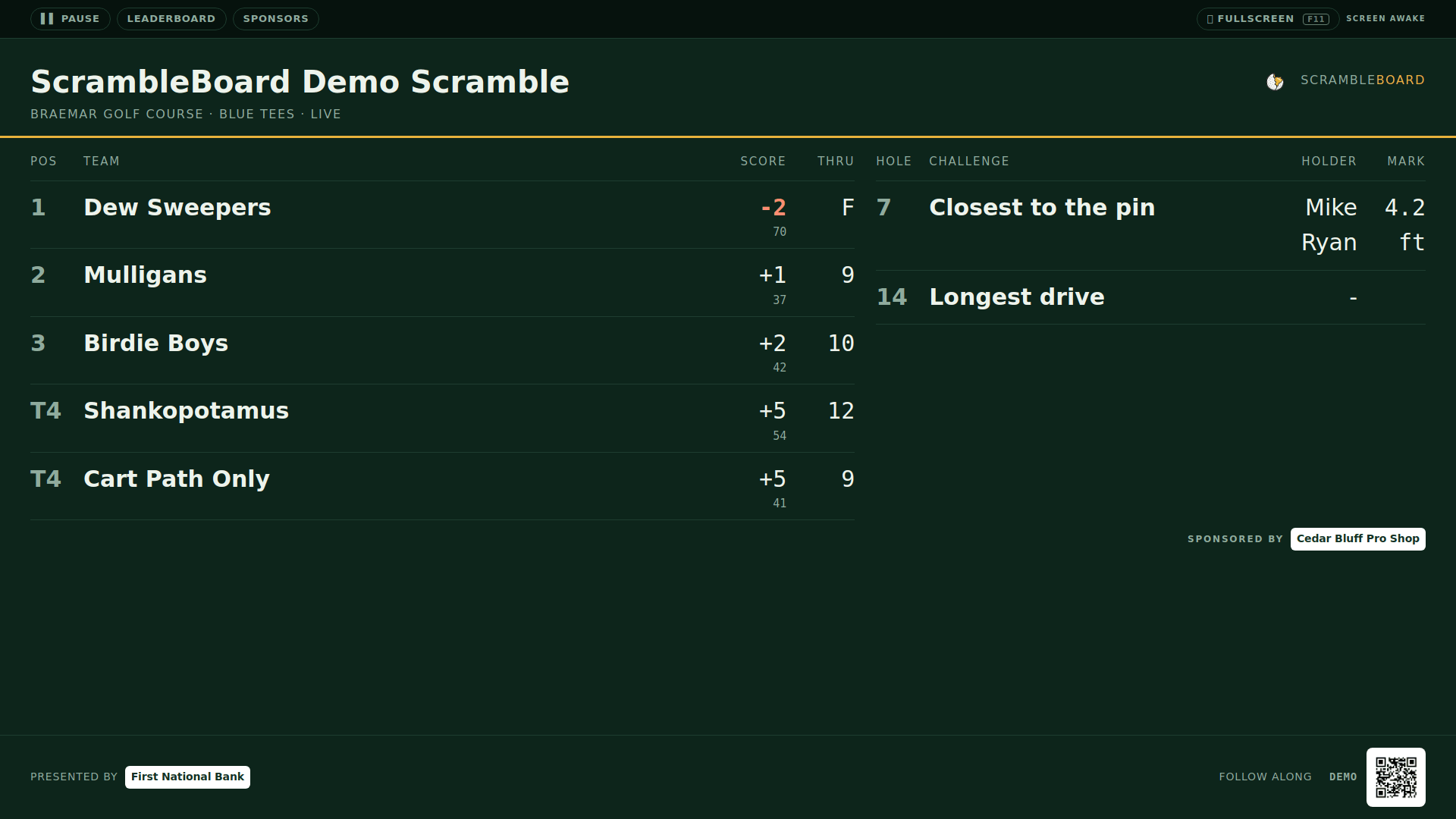
- Split - the standings on the left, a rail of challenges and skins on the right. Nothing moves.
Big fields: the board pages
A field bigger than one screen never scrolls - scrolling text on a distant TV is unreadable. The board pages instead: twenty seconds per page on the same clock as the rotation, the leader pinned at the top of every page, and a "Page 2 of 3" marker at the bottom. "Most rows on one TV screen" on the Event setup page sets the ceiling - 8, 12, 16, or 20 rows. Fewer rows means bigger type; 12 is the default. A field that fits on one page shows no marker and never flips.
Running more than one screen
One event can feed any number of screens, and each screen can show its own thing. Add ?mode= to the URL to override the display mode for that screen only - the event's setting is untouched:
- scrambleboard.com/t/YOURCODE/tv?mode=leaderboard - this screen holds the plain standings while the setting rotates.
- scrambleboard.com/t/YOURCODE/tv?mode=rotate&panel=skins - this screen pins one panel of the rotation, here the skins race. Panels: board, challenges, skins, season, sponsors.
What the refresh means
The board asks for fresh standings every 15 seconds - a score entered on the tee shows on the TV inside about 15 seconds. Every screen showing the event flips pages and panels on the same clock, so two TVs in the same room stay in step.
If it does not work
- Blank or "not found" - the URL is wrong or the code is from another event. Check the join code on your control room; the TV URL is that code exactly.
- The board is stuck - the TV or stick went to sleep, or its browser suspended the tab. Wake it and reload the page; then turn off the device's sleep timer for the day.
- Wrong event on screen - last week's URL. The join code changes per event, so the TV URL does too. "Run again" events get a fresh code.
- Rotation shows fewer panels than you expected - panels with nothing to show are skipped. The skins panel appears once a skin is won; the sponsors panel appears once a sponsor is added.
- Type is too small from the back of the room - set "Most rows on one TV screen" to 8. Fewer rows, bigger type.
- The board is not moving - it is paused. Press Resume on the control bar, or reload the address without the panel and page on the end.
- The controls have disappeared - they hide themselves. Move the mouse or touch the screen.
Frequently asked questions
Does the TV need an account or a login?
No. The TV board is a public page for anyone with the event link, the same as the leaderboard on a phone.
Can I show two events on two TVs?
Yes. Each event has its own code, so each TV shows its own URL. One event on many screens works the same way - every screen stays in step.
The rotation timing - can I change it?
Not today. Panels and pages hold for twenty seconds each, and the board refreshes every fifteen. You can hold any screen for as long as you like with Pause. Tell us on the contact page if your event needs different timing.
Will the screen go to sleep?
The board asks the device to stay awake for as long as it is showing, and says "Screen awake" in the corner when the browser allows it. Not every TV browser does, so it is still worth turning off the device's own sleep timer for the day - that setting lives on the TV, not in ScrambleBoard.
Run your event without paper Players scan a code, claim their name, and score on their phones. The leaderboard updates on every phone and the clubhouse TV. No app to install.
Create a free tournamentRelated guides
There's nothing to install and no player accounts. A player points their camera at the QR poster, taps the link, claims their name from the roster, and is scoring within thirty seconds.
Six steps take you from sign-in to a live event, and each one below shows exactly where to click. Your first event is free, so run a practice one first - same steps, no charge - and the real one will feel routine.
A skins game is the most popular side game in golf: every hole is worth a prize called a skin, and the only way to win it is to beat everyone outright. If two or more players tie for low score, nobody wins and the skin carries over to the next hole, where the pot gets bigger. That simple rule set is why skins shows up everywhere from Saturday foursomes to 144-player charity scrambles.
Selling the sponsorship is the easy part. Getting a usable logo out of five businesses the week of the event is the part that eats an evening. ScrambleBoard gives each business its own link, shows you the mark on every surface it will land on, and puts nothing on a screen until you say so.