 Scramble
Guides Setup
Printing setup - paper, margins, and browsers
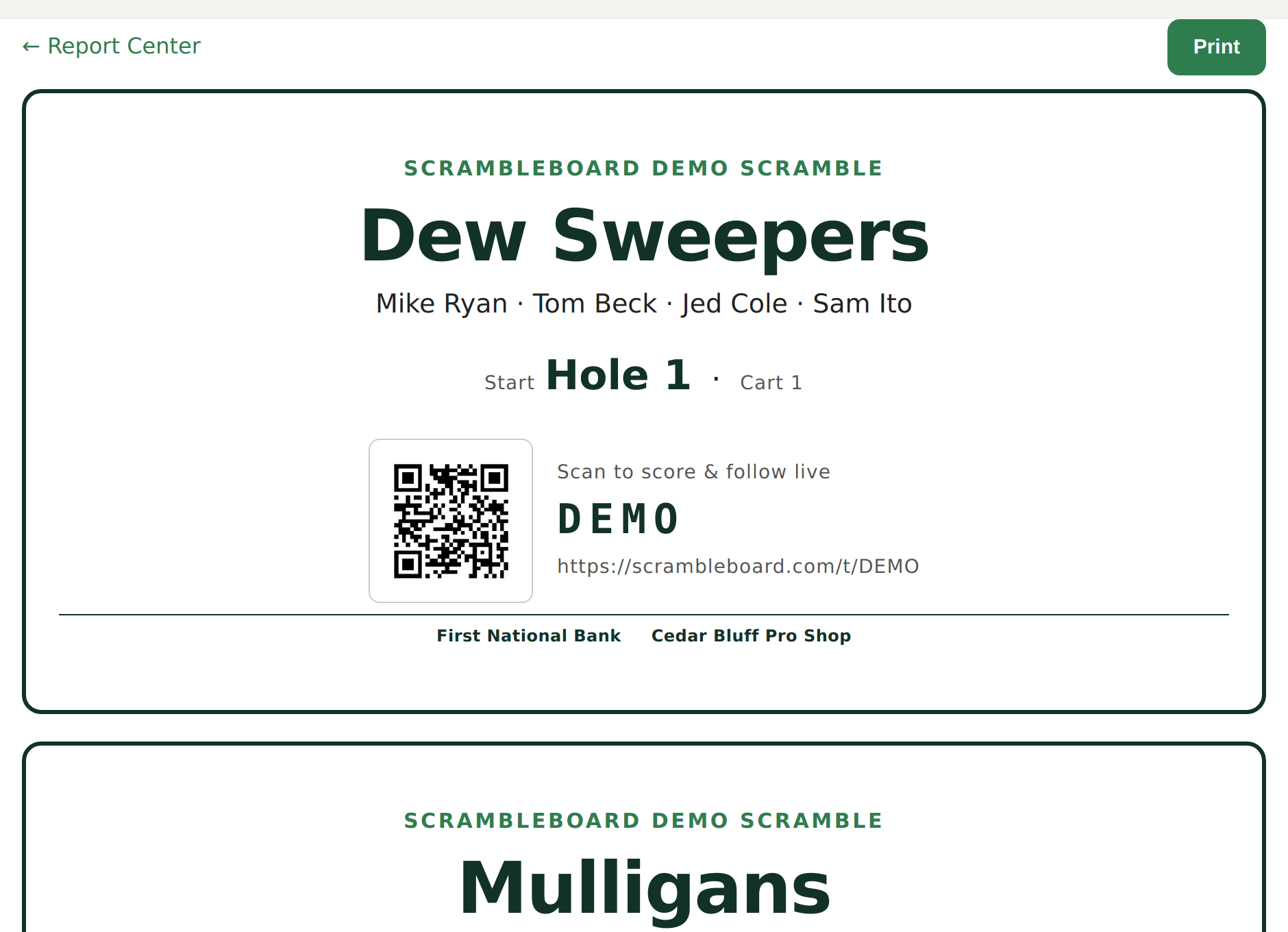
Every print comes from the Report Center: scorecards, cart signs, an alphabetized check-in sheet, sponsor signs, and the final results. This page is the printer-side reference; the how-to is in the printing guide.
Paper and orientation
- Scorecards and sponsor signs print landscape on letter paper; the page sets this itself, so leave your print dialog on the default orientation.
- Cart signs, check-in sheets, and results print portrait.
- Prints use a fixed black-on-white palette whatever theme your screen uses.
Browser settings
1. Use Chrome or Edge for the most predictable output; Safari works but breaks pages slightly differently.
2. In the print dialog, turn OFF "Headers and footers" - the date and URL lines eat the margins.
3. Leave margins on Default and scale at 100%. Do not use "Fit to page".
4. Turn ON "Background graphics" if the QR looks washed out.
Cards per page
The designer's "Cards per page" control has three positions: Auto fits as many cards as the page holds without ever splitting one, 1 gives every card its own page, and 2 prints tighter to fit two. Cards with the per-player QR footer are taller and always take a full page.
Presets and templates
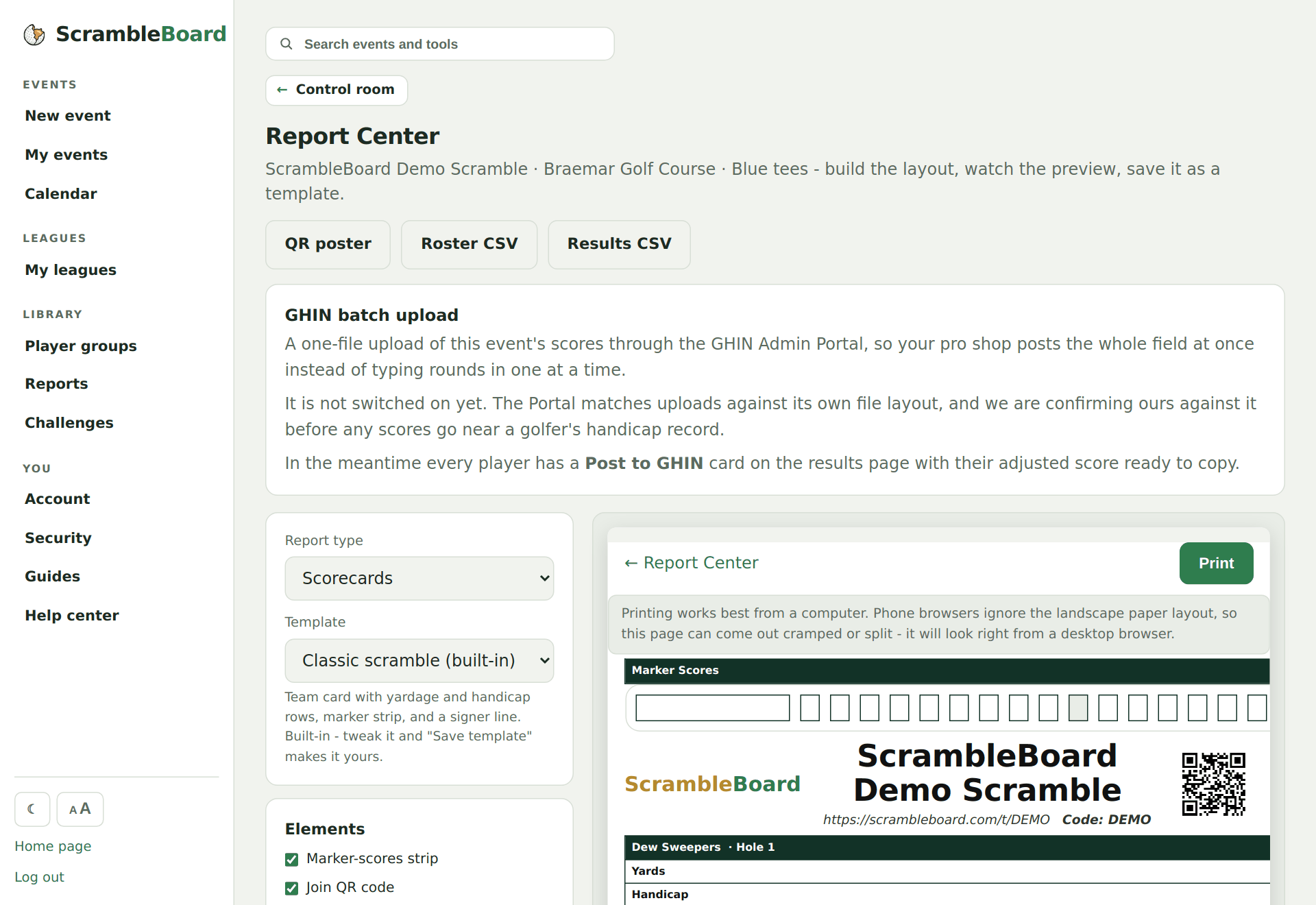
Four built-in presets sit above your saved templates in the designer - a classic scramble card, a cart card for stroke play, a skins sheet, and a 9-hole league card. A fresh event's scorecards already use the preset matching its format. Tweak anything and "Save as my template" keeps the layout across all your events.
What you should see
The live preview beside the designer is the exact page that prints. If the preview looks right and the paper does not, the difference is a print-dialog setting - almost always headers/footers or scale.
If it does not work
- A card splits across two pages - set "Cards per page" to 1, or turn off the per-player QR footer.
- The QR prints too small to scan - it needs about an inch; use 1 card per page.
- Blank last page - some printers add one when "Auto" exactly fills the sheet; print the page range instead.
Full guide: Print scorecards, cart signs, and check-in sheets
Run your event without paper Players scan a code, claim their name, and score on their phones. The leaderboard updates on every phone and the clubhouse TV. No app to install.
Create a free tournamentRelated guides
Paper still matters on event day. The Report Center prints six documents from the roster you already built - no copy-pasting into Word at 6 a.m. And the paper feeds the app: every scorecard carries the event's join QR, so the card in the cart is also the way in.
Every event has a TV board: a fullscreen leaderboard made to be read from across a room. It needs no login and no app - it is a web page, so anything with a browser and an HDMI port can show it.
Six steps take you from sign-in to a live event, and each one below shows exactly where to click. Your first event is free, so run a practice one first - same steps, no charge - and the real one will feel routine.