 Scramble
Guides Setup
Roster imports - the columns we read
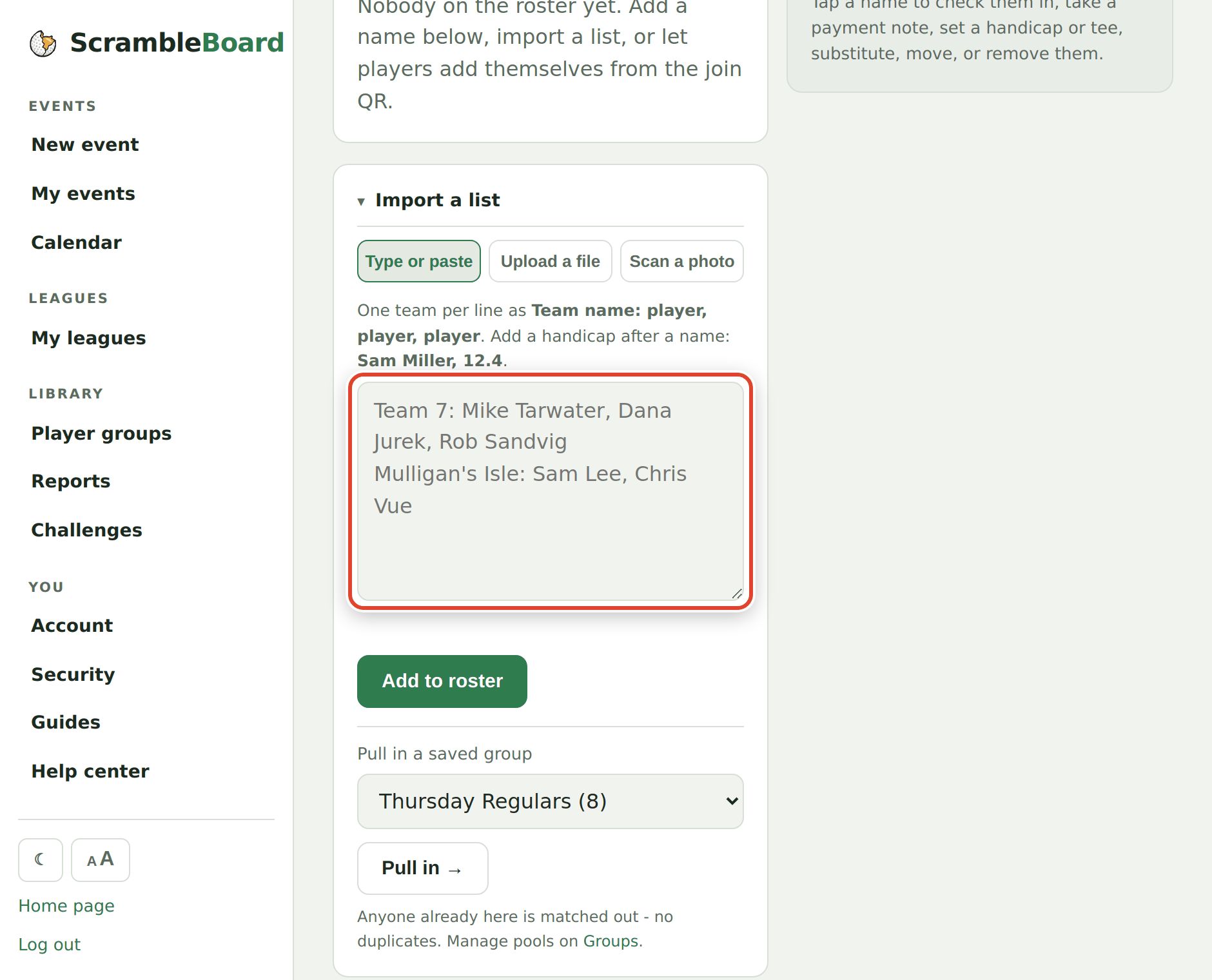
The roster tab takes three inputs: pasted text, an uploaded CSV/TSV/TXT file, or a photo of the paper sheet read by in-browser OCR into the paste box. This page is the file-format reference.
Columns we recognize
Headers are matched loosely - case, spaces, and punctuation do not matter.
- Handicaps parse from the paste box too: "Jamie Smith, 8.2" is enough.
- A plus handicap is written "+2.4" and is handled correctly.
- Paid values that count: paid, yes, x, a checkmark, or a dollar amount. Paid lands on the event roster only - a saved group never stores payment.
| We read | Header looks like |
|---|---|
| Name | Name, or First Name + Last Name in two columns |
| Handicap | Handicap, HCP, Handicap Index, Index |
| Email, E-mail (saved groups only) | |
| Paid | Paid, Amount Paid, Payment Status, Order Status, Amount |
Exports that import as they are
Attendee exports from Eventbrite, GolfStatus, and Square import unchanged, including who has paid. A GHIN club-roster CSV (First Name, Last Name, Handicap Index, Email) imports into a saved group directly.
How rows land
- Team formats (scramble, best ball): names fill teams in order.
- Grouped stroke or Stableford: names chunk into carts of your group size, in order.
- Individual play: each name gets their own card.
Dedupe rules
Names are matched with normalized comparison - case, extra spaces, and punctuation do not create duplicates. Importing again skips names already on the roster; pulling a saved group into an event adds only newcomers; saving a roster back into a group merges by name.
If it does not work
- Names land in one column as "Smith, Jamie" - that is fine; the comma form is read.
- Handicaps did not import - check the header is one of the recognized ones, and that the column holds numbers.
- The OCR misread the sheet - its output lands in the paste box for exactly this reason; fix the lines by hand before pressing import.
Full guide: Import your roster from a spreadsheet or registration export
Run your event without paper Players scan a code, claim their name, and score on their phones. The leaderboard updates on every phone and the clubhouse TV. No app to install.
Create a free tournamentRelated guides
If your sign-ups live in a spreadsheet or a registration platform, don't retype them. On the event's roster page, open **Import a list** and the **Upload a file** tab - Excel workbooks work as-is - and the columns that matter are found automatically.
If you run events for the same crowd - a league night, a member roster, the annual buddies trip - build the list once as a group. Every future event starts from it instead of from a blank paste box.
Chasing entry fees is half of running an outing. ScrambleBoard tracks who's paid - it doesn't move money, it just makes sure you stop guessing at the check-in table.