 Scramble
Guides Using ScrambleBoard
Take entry fees online with Stripe
Golfers can sign up and pay on your event's own page, and the money goes straight to your own Stripe account. ScrambleBoard takes no cut. This guide goes from connecting Stripe to the day you refund someone, with the real screens at each step.
Before you start
Stripe is the company that runs the card payments. You need your own Stripe account, and ScrambleBoard helps you make one if you do not have one yet. Have these ready: your legal name or your club's name, a bank account for payouts, and about 10 minutes.
Taking card payments needs one of these on the event:
The Organizer plan includes online sign-up without card payments: golfers sign up on your page and pay at the course. If that is all you need, you do not need Stripe at all.
- Your first event. It can collect fees online at no cost (one event per account).
- Event + Online Payments, $149 for one event. If you already paid $10 for the event, you pay only the difference.
- The Course plan, which covers every event on your calendar.
Step 1 - connect your Stripe account
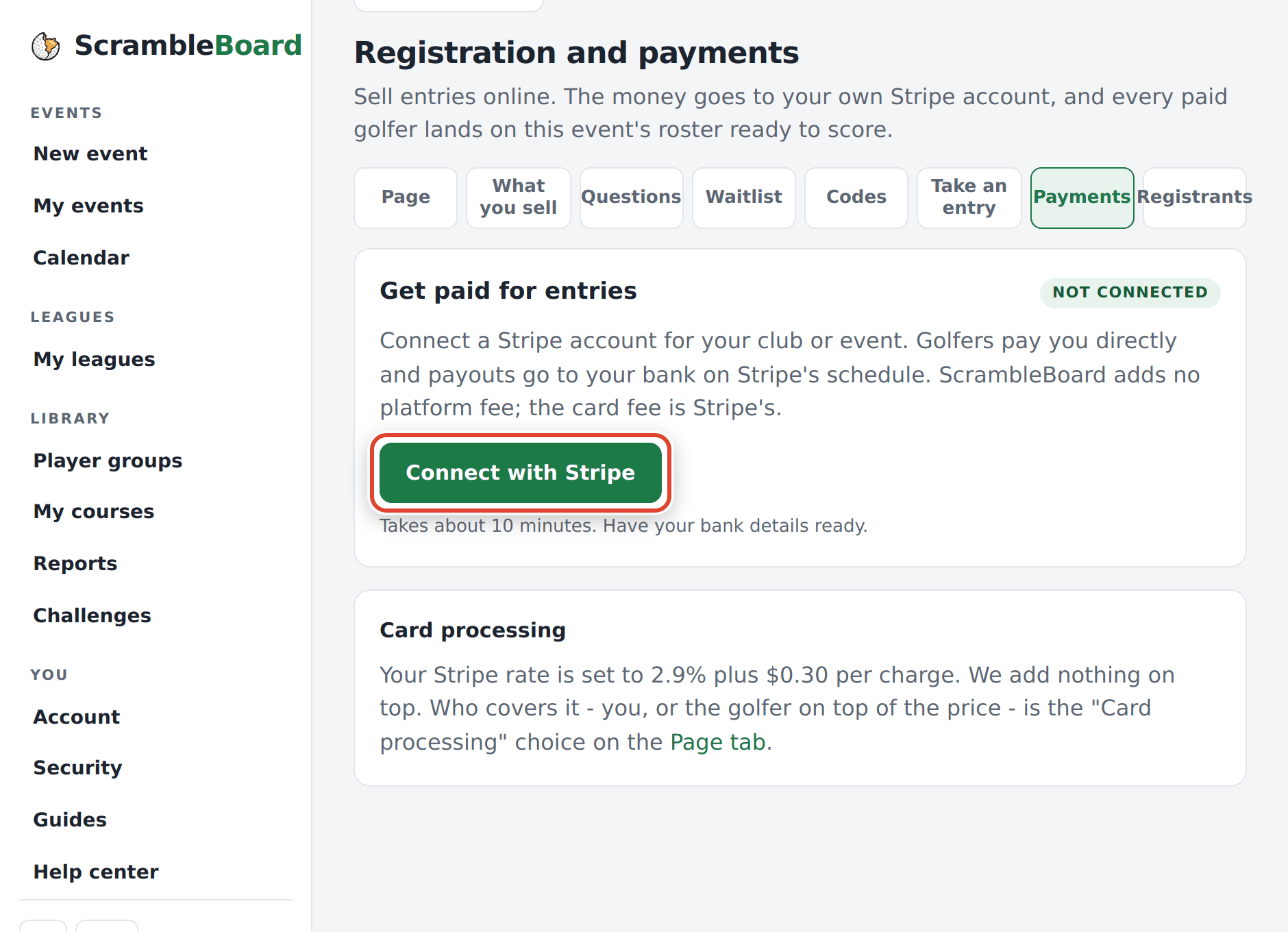
Open your event, go to Registration and payments, and open the Payments tab. Press Connect with Stripe. Stripe opens its own pages and asks for your details and your bank account. When you finish, Stripe sends you back to ScrambleBoard.
The tag on the card tells you where you are:
You connect Stripe once, on your account. Every event you own after that uses the same Stripe account. Only the event owner can connect Stripe. Co-organizers see a note that says so.
- Not connected - you have not started.
- Details needed - Stripe needs more from you, usually an identity check or bank details. Press Finish setup on Stripe.
- Charges on - you can take payments.
Step 2 - set what you sell
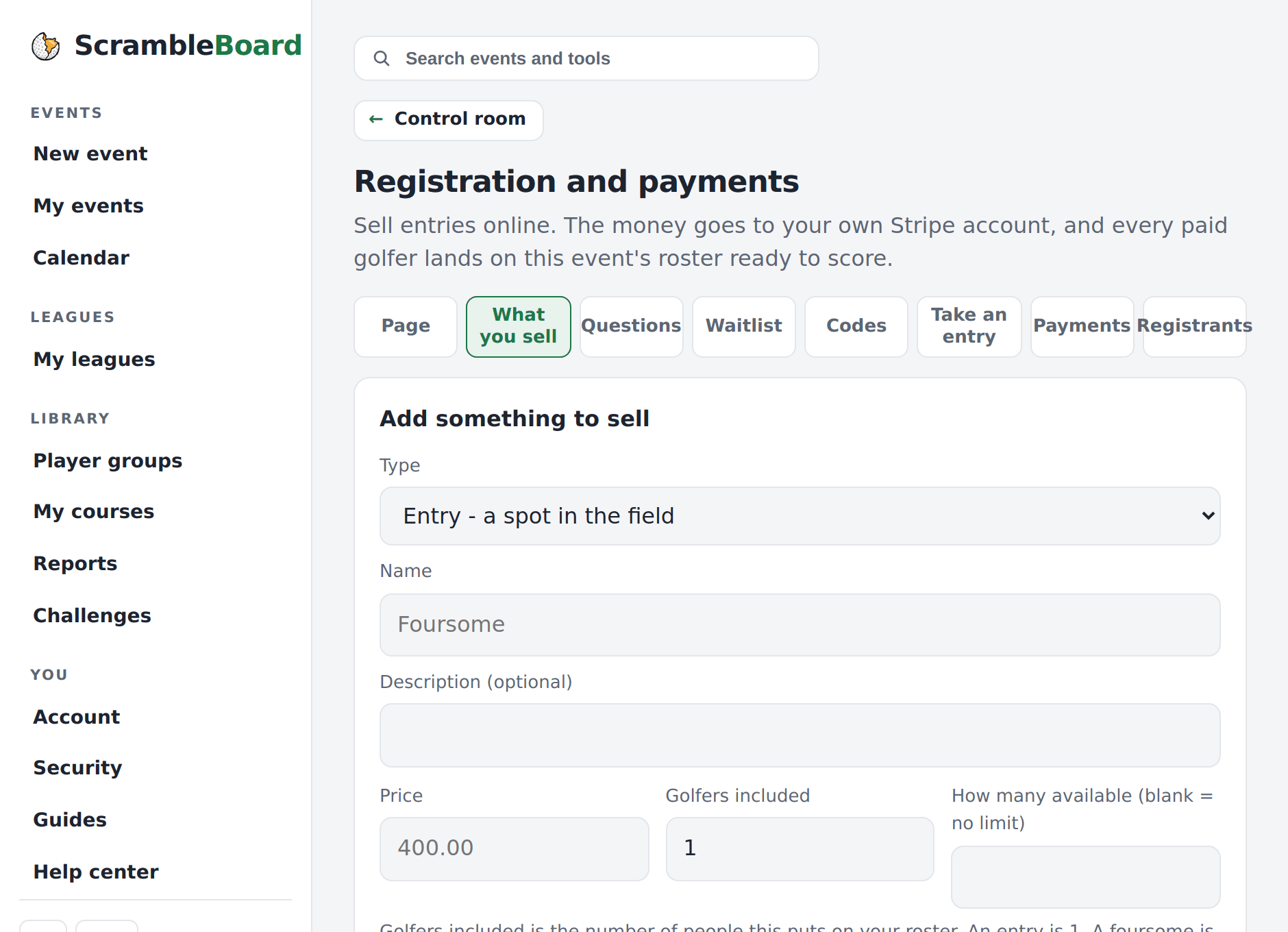
On the What you sell tab, add each thing golfers can buy: an entry, a team of four, a hole sponsorship, a dinner guest. Each item has a name, a price, and the number of golfers it puts on the roster. A team-of-four entry puts four golfers on one team.
Step 3 - choose who pays the card fee
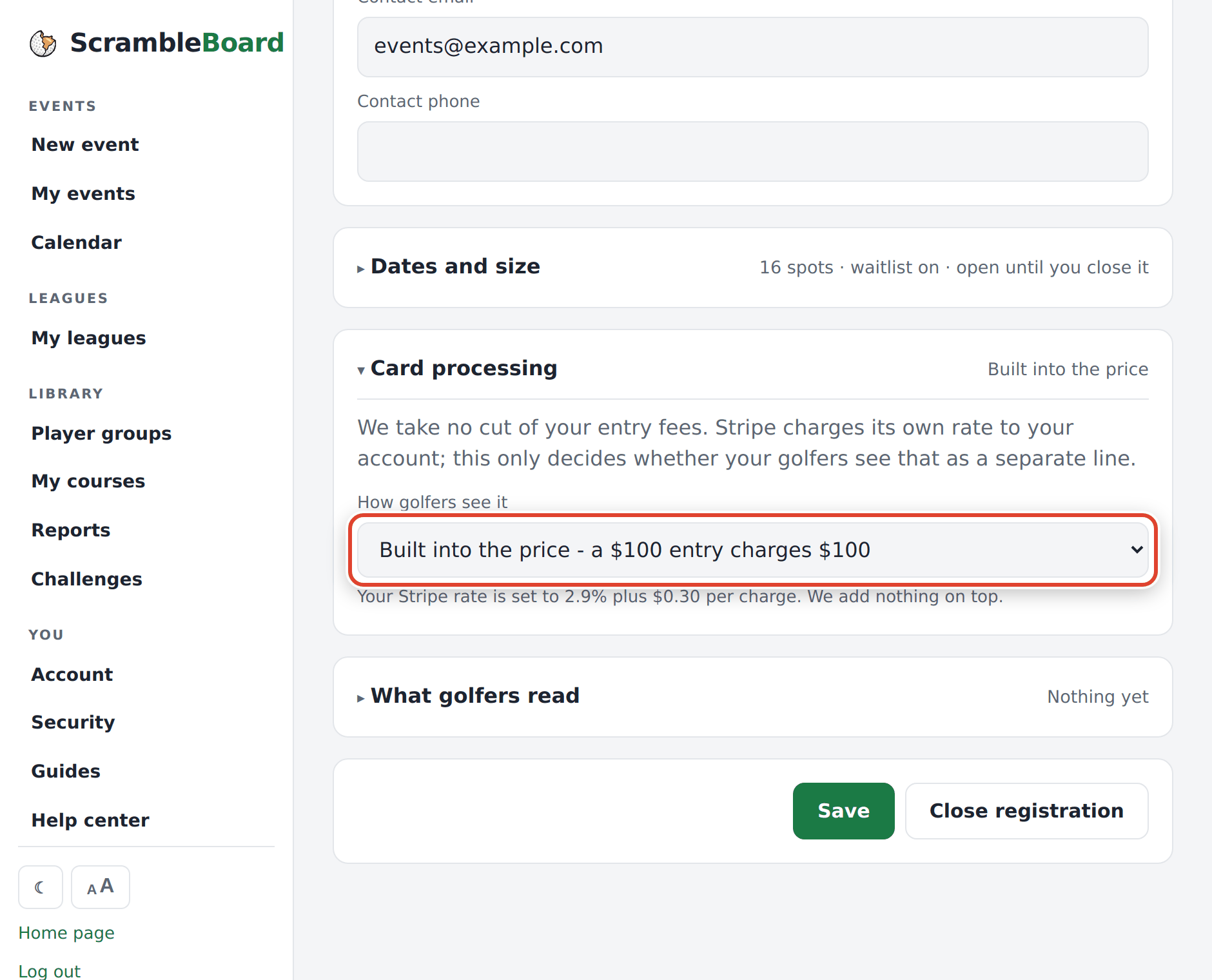
Stripe charges a card fee on every payment (the Payments tab shows your rate). On the Page tab, open Card processing and pick one:
- Built into the price - a $100 entry charges the golfer $100, and Stripe takes its fee from that.
- Added at checkout - the golfer pays the fee on top, so you keep the full $100.
Step 4 - publish the page and share it
Fill in the page (what the event is, who hosts it, the dates and the field size) and press Publish the page. You get an address like scrambleboard.com/register/your-event. Put it in your email, on a flyer, or behind a QR code. When the field is full, the page stops selling spots. It never sells more spots than you have, even when two golfers press Pay at the same moment.
What golfers see
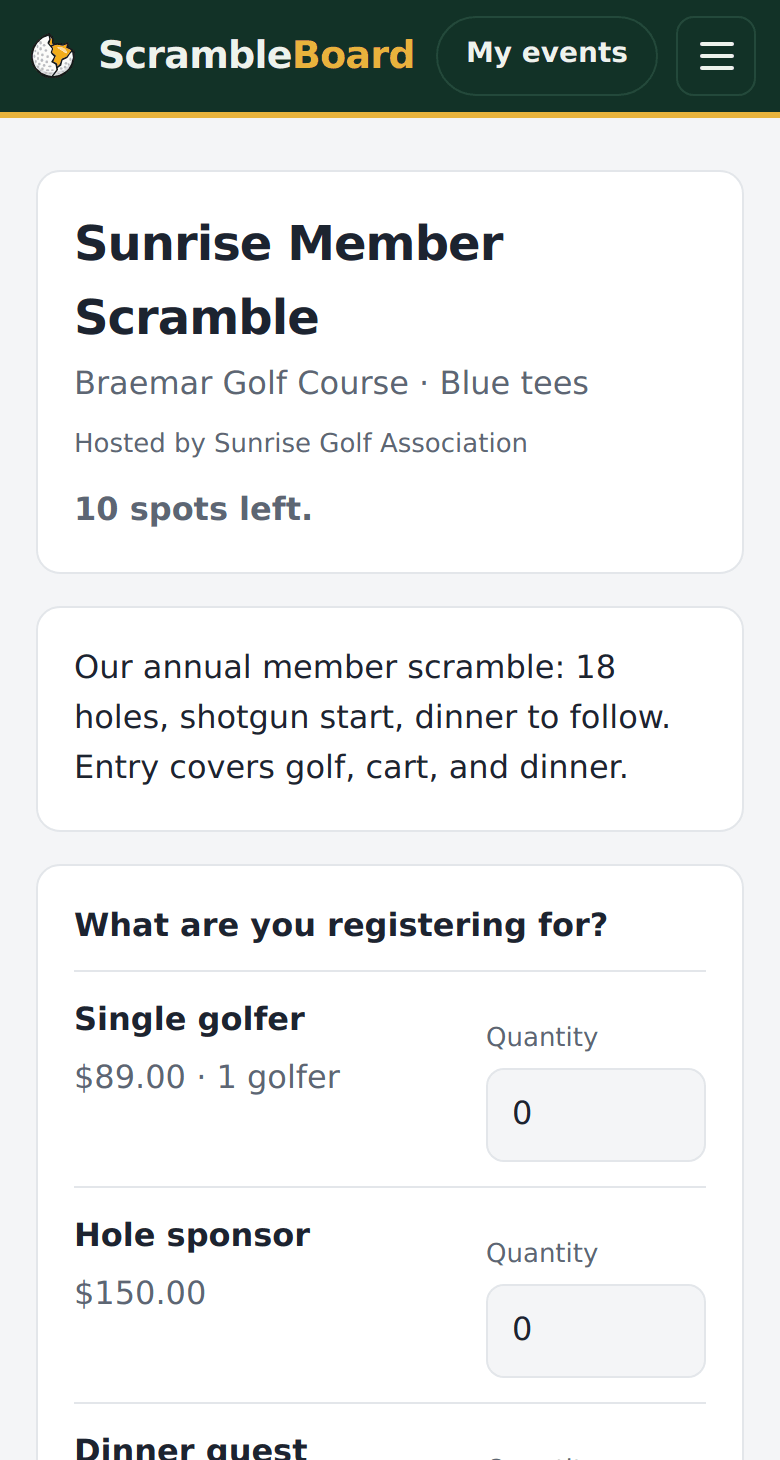
Golfers open your page on a phone or a computer, pick what they want, add their names, and pay by card on Stripe's secure checkout. They get a confirmation email. Each paid golfer goes onto your roster (the list of players) at once, ready to score on the day. You do not import anything.
Payouts: when the money reaches your bank
The money goes into your Stripe account, and Stripe sends it to your bank on its own schedule (for most new accounts, a few business days after each payment). You see and change the schedule in your Stripe dashboard. The Payments tab has a link to it.
This is different from the Payouts page in your event. That page works out prize money for winners. It does not move money.
Refunds
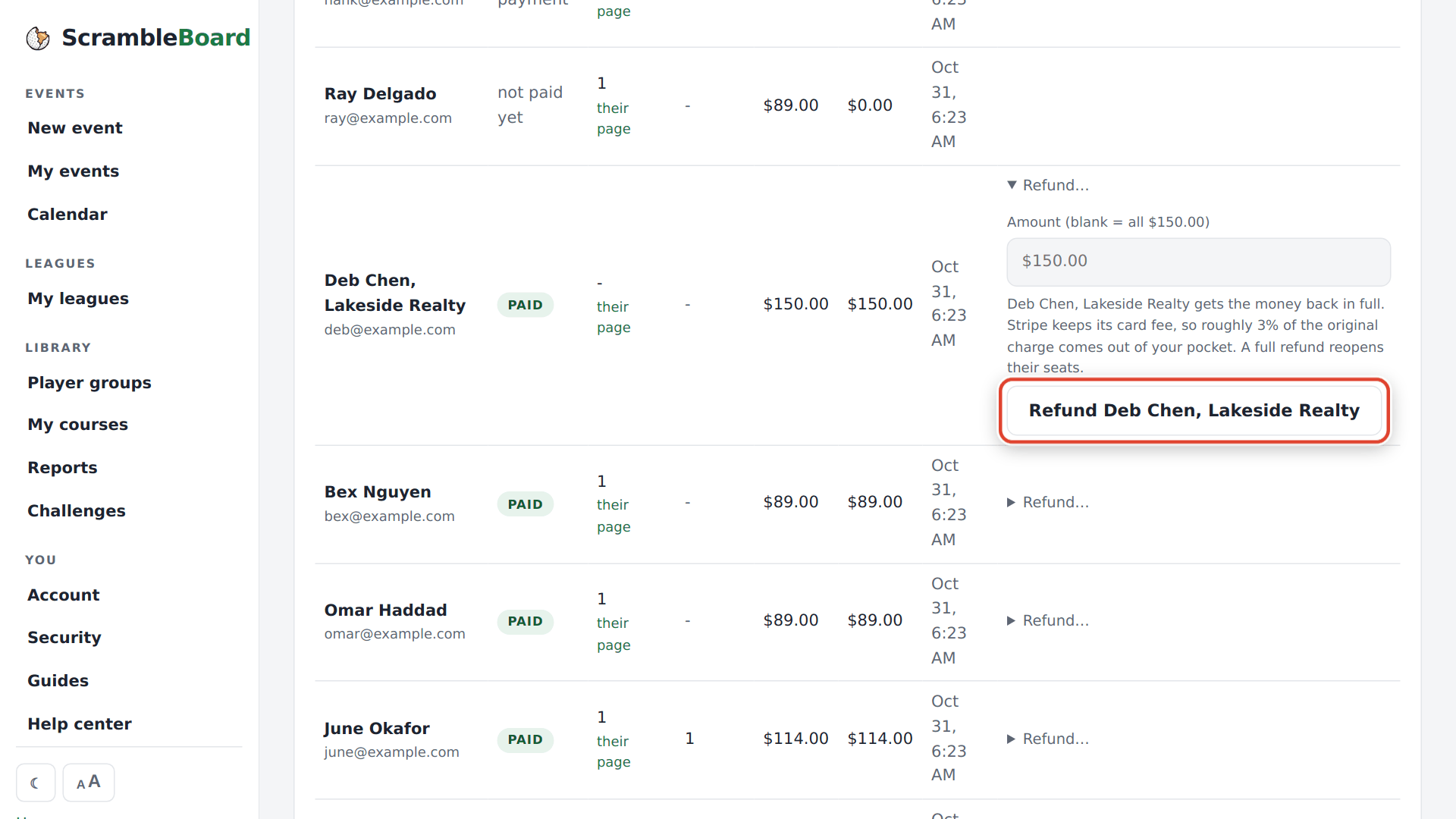
Open the Registrants tab. Every order has a Refund… link. Leave the amount blank to refund everything, or type a smaller amount for a part refund. A full refund gives the golfer's spots back to the field.
Stripe keeps its card fee when you refund, so about 3% of the first charge comes out of your money. Write your refund policy in What golfers read on the Page tab, so golfers know the rule before they pay.
Disputes (chargebacks)
A dispute is when a golfer asks their bank to take a payment back. You are the seller, so the dispute comes to you, and you answer it in your Stripe dashboard. Stripe sends you an email with the steps and the deadline. In ScrambleBoard, the order shows as disputed so you know which golfer it is. The best defense is a clear refund policy and a fast refund when someone asks.
Your records
The Registrants tab has a ledger download (CSV) with every charge, fee and refund, ready for your bookkeeper. Your Stripe dashboard has the same payments and your payouts.
Frequently asked questions
Does ScrambleBoard take a percentage of my entry fees?
No. ScrambleBoard adds no platform fee. Stripe charges its own card fee, and you choose whether the golfer sees it as a separate line.
Can I use my club's existing Stripe account?
Yes. When you press Connect with Stripe, sign in to the Stripe account you already have.
Can golfers pay at the course instead?
Yes. Take the entry on the Take an entry tab, or mark them paid on the players page. Online sign-up without card payments is included on the Organizer plan.
Who handles a chargeback?
You do, in your Stripe dashboard, because you are the seller. ScrambleBoard marks the order as disputed so you can find it.
Run your event without paper Players scan a code, claim their name, and score on their phones. The leaderboard updates on every phone and the clubhouse TV. No app to install.
Create a free tournamentRelated guides
Chasing entry fees is half the work of running an outing. ScrambleBoard can record who has paid. This record does not move money. It stops the guessing at the check-in table.
Most event-day problems start at registration, weeks earlier: missing handicaps, players with no team, and shirt sizes nobody wrote down. This checklist covers what to collect from each player, how to build teams, and a week-by-week timeline that keeps the last days calm.
You build the roster on the event's roster page. On a new event, the share page asks **How do players get on the roster?** - pick **I'll add them** to go there. Use whichever way matches what you have in your hand.
This charity golf tournament rules template is a one-page rules sheet for a four-person scramble, the format most charity events use. In a scramble, all four players hit, the team picks the best shot, and everyone plays the next shot from there. Copy it, add your event name, and post it.