 Scramble
Guides Using ScrambleBoard
Add an event to your home screen
Players do not need to install anything to score. The event works in the phone's browser. But you can put the event on your home screen if you want. Then it opens like an app, with no browser bar, and goes straight to your event.
Why do it
- One tap opens your event. You do not look for the text or the QR code again.
- On an iPhone, Safari can clear a website's saved data when the phone is low on space. A home screen app keeps its saved pages better, so the scoring page is more likely to be on the phone when the signal drops.
- Each event you add gets its own icon, with the event name under it.
The card on the event pages
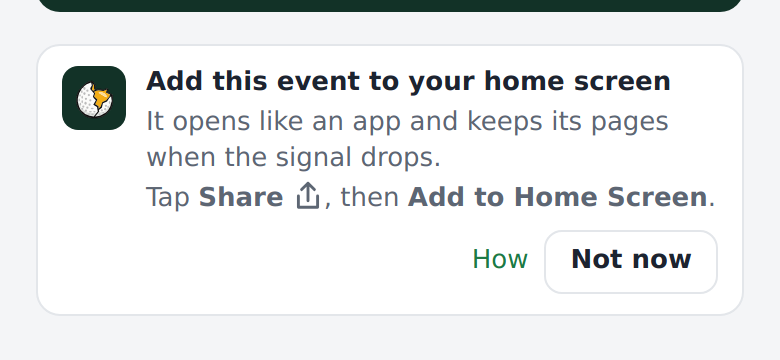
On the event pages, a small card at the bottom says Add this event to your home screen. It shows only on a phone or browser that can add the event. Tap Not now to hide it on that phone for 30 days. When the event is already on your home screen, the card does not show.
On an iPhone or iPad
1. Open the event in Safari (scan the QR code or open the text link).
2. Tap Share, the square with an arrow that points up. It is at the bottom of the screen on an iPhone and at the top on an iPad.
3. Scroll down and tap Add to Home Screen, then Add.
The icon opens your event. Recent iPhones also show Add to Home Screen in the Share menu of Chrome and other browsers.
On an Android phone
1. Open the event in Chrome.
2. Tap Add to home screen on the card at the bottom of the page. Or open the Chrome menu (three dots) and tap Add to Home screen or Install app.
3. Tap Install or Add.
What you should see
An icon with the ScrambleBoard mark and the event name. Tap it, and the event opens full screen, with no address bar.
If it does not work
- The card does not show - this browser cannot add the event, or the event is already on the home screen, or someone tapped Not now in the last 30 days. Use the steps above from the browser menu.
- The icon opens the wrong page - remove it and add it again from the event page itself, not from the ScrambleBoard home page.
- You want to remove it - press and hold the icon, then tap Remove App (iPhone) or Uninstall (Android). Your scores stay on the event.
Full guide: Offline scoring - what happens in a dead zone
Run your event without paper Players scan a code, claim their name, and score on their phones. The leaderboard updates on every phone and the clubhouse TV. No app to install.
Create a free tournamentRelated guides
Golf courses have dead zones with no phone signal. So each score saves to the phone first, then sends to the server when the signal returns.
Players install nothing and make no account. A player scans the QR poster with the phone camera, taps their name, and can score in about thirty seconds.
Every event has a six-letter join code, and every way into the event uses it. Players do not sign in or install an app. This page lists the ways in.